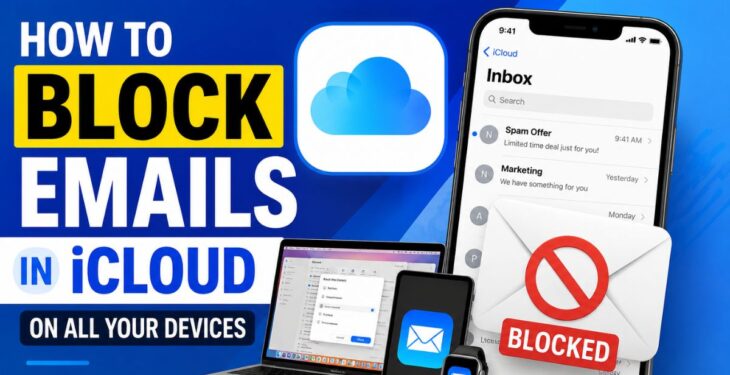
Spam and unwanted newsletters bury key client emails in iCloud Mail, especially when multiple Apple devices are in play. Important replies slip under a stack of promos and cold pitches.
Learning how to block emails in iCloud gives you control over that noise. You can block senders in Mail on Mac, iPhone, and iPad, build server rules on iCloud.com, and fine‑tune Junk and filter settings. This guide walks through each method so teams see important messages first.
Start with the overview below, then jump to the sections that match the devices you use most.
Key Takeaways
Use this quick list as a reference.
- Block unwanted senders on Mac, iPhone, iPad, and the web. Use iCloud.com rules so blocks sync across devices.
- Mark spam as Junk instead of just deleting it. Every Junk mark trains the iCloud Mail filter. Turn on Mail Privacy Protection to hide tracking pixels.
- Choose between blocking and unsubscribing based on sender type. Blocking fits unknown or risky contacts; unsubscribing fits normal newsletters you no longer want.
Why Blocking Emails in iCloud Matters for Professionals
Blocking emails in iCloud Mail protects your time and focus. When inboxes stay lean, teams respond faster to clients and campaigns. Research from McKinsey estimated that knowledge workers spend about a quarter of their workweek on email, and studies on drowning in emails: investigating email load confirm that high volumes are a significant source of workplace stress.
For teams that live in Apple Mail and iCloud Mail, inbox clutter makes status updates and approvals hard to spot. A critical message from a key customer can land between two aggressive cold pitches; once it scrolls off‑screen, projects stall and revenue opportunities vanish.
Unsolicited email also raises security risk for tech companies and large organizations. According to Verizon, email is a major path for phishing and social‑engineering attacks that lead to breaches, and research into a combined feature selection approach for malicious email detection highlights how sophisticated these threats have become. One rushed click on a fake invoice in iCloud Mail can open the door to account takeovers and data loss. On top of that, spammers track opens with invisible pixels; once those load, your address looks active, and more junk follows. Learning how to block emails in iCloud and turning on privacy features cuts that feedback loop.
“Treat every unexpected email like a knock on your office door: check who’s there before you open it.” — StuffRoots editorial team
How to Block Emails in iCloud on Mac, iPhone, and iPad
Knowing how to block emails in iCloud on Mac, iPhone, and iPad lets you stop repeat senders right inside the Mail apps you already use. Apple links blocking to your Contacts and iCloud spam filters, so one change keeps helping with future messages — an approach consistent with findings on spam email detection using modern machine-learning methods that underpin many mail filtering systems today. Start with your main work device, then repeat these steps on any secondary devices.
Blocking and Reporting Junk Mail on Mac

On macOS, the Apple Mail app gives you a simple Block Contact control and a Junk button. Together they let you block an email address and train the iCloud Mail spam filter. Many professionals spend all day in Mail on a MacBook or iMac, so tweaks here pay off quickly.
- Open Apple Mail on your Mac and wait for your iCloud Mail inbox to load.
- Select a message from the sender you want to block, then hover over their name in the header.
- Right‑click (or Control‑click) the name and choose Block Contact. Confirm if Mail asks.
- New messages from that address now skip your main inbox and go straight to Trash or the blocked area, depending on your Mail settings.
- With the same message selected, click Junk in the toolbar (or drag it to the Junk folder) so iCloud Mail learns that similar messages are spam.
To reverse a block on Mac, open Mail › Settings › Junk Mail / Blocked and review the blocked list. Remove the contact you want to restore; future messages from that address return to your inbox.
Use this flow whenever you need to block emails on Mac Mail during a busy day.
Blocking and Reporting Junk Mail on iPhone or iPad

On iPhone and iPad, blocking runs through the Contacts system that Mail uses. When you block an email address on iPhone, Mail treats it like a blocked phone caller and moves new messages away from the inbox. You can also mark single messages as Junk to teach iCloud Mail which senders are spam.
- Open the Mail app on your iPhone or iPad and let your iCloud inbox refresh.
- Open a message from the sender you want to block, tap their name at the top, then tap it again to open the full contact card.
- Scroll down and tap Block This Contact, then confirm. New messages from that sender now skip the main inbox.
- To report spam without blocking, return to the inbox, swipe left on the message, tap More, then tap Move to Junk.
- To unblock someone later, open an old message from them, tap the name, open the contact card again, and choose Unblock This Contact.
These steps cover how to block spam emails on iPhone or iPad and how to block someone on iCloud Mail while you are mobile, without reaching for your laptop.
How to Block Emails in iCloud via iCloud.com (Any Browser or Device)

Blocking emails on iCloud.com uses rules that run on Apple servers instead of only in the Mail apps. These rules act on new mail before it reaches your devices, so one setup works across Mac, iPhone, iPad, and even third‑party clients like Microsoft Outlook.
Follow these steps in Safari, Chrome, Edge, or any modern browser to move unwanted messages straight to Trash.
- Go to iCloud.com, sign in with your Apple ID, complete two‑factor authentication if asked, and open Mail.
- Click the gear‑shaped Settings button in the bottom‑left corner, then choose Settings again.
- Open the Rules tab and click Add Rule.
- Set the condition to Is From, then type the email address you want to block.
- Set the action to Move to Trash (or another folder if you prefer), then click Add.
- Repeat these steps for other unwanted or risky addresses. Rules run on iCloud servers, so they work even when your devices are offline, though new rules can take up to an hour to apply.
- To block a whole domain, create another rule where From contains the domain (for example,
example-spam.com) and again choose Move to Trash.
To stop blocking someone, go back to the Rules tab, select the rule, and delete it. Messages from that sender will then land in your inbox on every connected device.
For multi‑device setups, these server‑side rules are often the best answer to how to block emails in iCloud.
How to Reduce and Prevent Spam in iCloud Mail
Reducing spam in iCloud Mail means using privacy settings, smart habits, and extra addresses that shield your main account. Instead of blocking every sender one by one, you make it harder for spammers to confirm that your mailbox is active.
Apple’s Mail Privacy Protection in iOS, iPadOS, macOS, and on iCloud.com loads content through proxy servers and hides whether you opened a message, which breaks many tracking pixels.
- On iPhone or iPad: Go to Settings › Mail › Privacy Protection and turn on Protect Mail Activity.
- On a Mac: In Mail, open Mail › Settings › Privacy and enable Protect Mail Activity.
- On iCloud.com: Open Mail, click the settings gear, choose Privacy and Security, and switch on Protect Mail Activity.
Next, rely on the iCloud spam filter and your own judgment. Delete strange invoices and password alerts without opening them or clicking links. Research tracking global daily CO2 emissions is one example of how data collection at scale shapes behavior — similarly, the sheer volume of email sent daily means that professionals who reduce even a small fraction of incoming spam gain meaningful time back.
Tip: Use a different alias for each risky signup so you can disable only that one.
To limit new spam, create an iCloud email alias in iCloud Mail settings before you sign up for webinars or free trials. Share the alias instead of your main address and disable it later if it starts attracting junk. If you subscribe to iCloud+, Hide My Email generates random forwarding addresses for each website so agencies and power users can protect their primary inboxes. Paired with the Junk button and simple iCloud email filter rules, these steps give you a strong base for how to stop spam emails on iPhone, Mac, and the web.
Blocking vs Unsubscribing: What’s the Difference and When to Use Each

Blocking and unsubscribing are related, but they are not the same inside iCloud Mail — understanding both matters because, as research on identifying and removing fraudulent enrollment attempts shows, not every unwanted sender can simply be unsubscribed from safely. Blocking pushes messages from a sender to Trash or Junk, while unsubscribing removes your address from a mailing list. Use both to keep a clean inbox without losing contact with important partners.
| Action | Best Use Case | What Happens In Practice |
|---|---|---|
| Block sender | Suspicious, aggressive, or unknown contacts | Future messages are sent straight to Trash or Junk. |
| Unsubscribe | Legit newsletters, webinars, or product updates you no longer want | Your address is removed from the mailing list, so reputable senders stop mailing you. |
| Use both | High‑volume inboxes with mixed marketing and risky mail | You unsubscribe from trusted brands and block mail that feels unsafe or abusive. |
For large teams that juggle dozens of mailing lists across Gmail, Outlook, Yahoo Mail, and iCloud Mail, manual unsubscribes add up. Services like Leave Me Alone connect to your mailbox with an app‑specific password and show every subscription in one dashboard so you can unsubscribe in one click.
In iOS Mail, marketing messages often show an Unsubscribe link at the top. Use that link—or the sender’s preference center—instead of blocking when you want fewer updates from a brand. If you forget where to start, search Apple Support for unsubscribe from emails on iPhone and follow the steps.
“Think of blocking as safety and unsubscribing as housekeeping for your inbox.” — StuffRoots editorial team
Stay in Control of Your iCloud Inbox

Staying in control of your iCloud inbox means combining device blocks, iCloud.com rules, Junk reporting, and privacy settings into one steady routine. When you use the same plan across Mac, iPhone, iPad, and the web, spam has fewer ways to distract you and your team.
Start by setting server rules on iCloud.com for your worst offenders, then turn on Mail Privacy Protection on every device. After that, use block controls in Apple Mail and iOS for senders that slip through and keep marking unwanted messages as Junk. This layered approach pulls together everything you learned about how to block emails in iCloud without adding much daily work.
Frequently Asked Questions
These answers cover common questions about blocking emails in iCloud. You can skim them whenever quick problems show up.
Question 1: Why am I still receiving emails from a blocked contact in iCloud?
You may still see messages because new rules can take time to apply across iCloud servers. Wait at least an hour, then confirm the rule matches the sender’s address exactly. If they switched to a new address, you will need to block that one too.
Question 2: Do iCloud email blocks sync across all my Apple devices?
Rules you create on iCloud.com are server‑side, so they apply to Mail on every connected device. Blocks you set only inside Apple Mail on Mac or the Mail app on iPhone and iPad can behave differently because those blocks depend on local app and contact settings.
Question 3: Can I block an entire email domain in iCloud, not just one address?
Yes. In the Rules section on iCloud.com, create a new rule where the From field contains the domain name, then choose Move to Trash. All future messages from that domain skip your inbox.